Accepting an invite
Who this is for:All users
Connecto accounts are created by invitation. An administrator invites you, and you activate the account by choosing a password and setting up two-factor authentication. You don’t create an account from scratch.
What you need
Section titled “What you need”- Your invite code. It arrives by email when someone invites you, and an administrator can also share it with you directly. The code expires 7 days after it’s issued — if yours has expired, ask for a new invite.
Activate your account
Section titled “Activate your account”- Open Connecto and go to the Activate your account page (the Create one link on
the sign-in page, at
/register). - Enter your Invite code.
- Choose a Password, then repeat it in Confirm password. Your password must be:
- at least 8 characters, and
- include an uppercase letter, a lowercase letter, and a number.
- Select Continue.
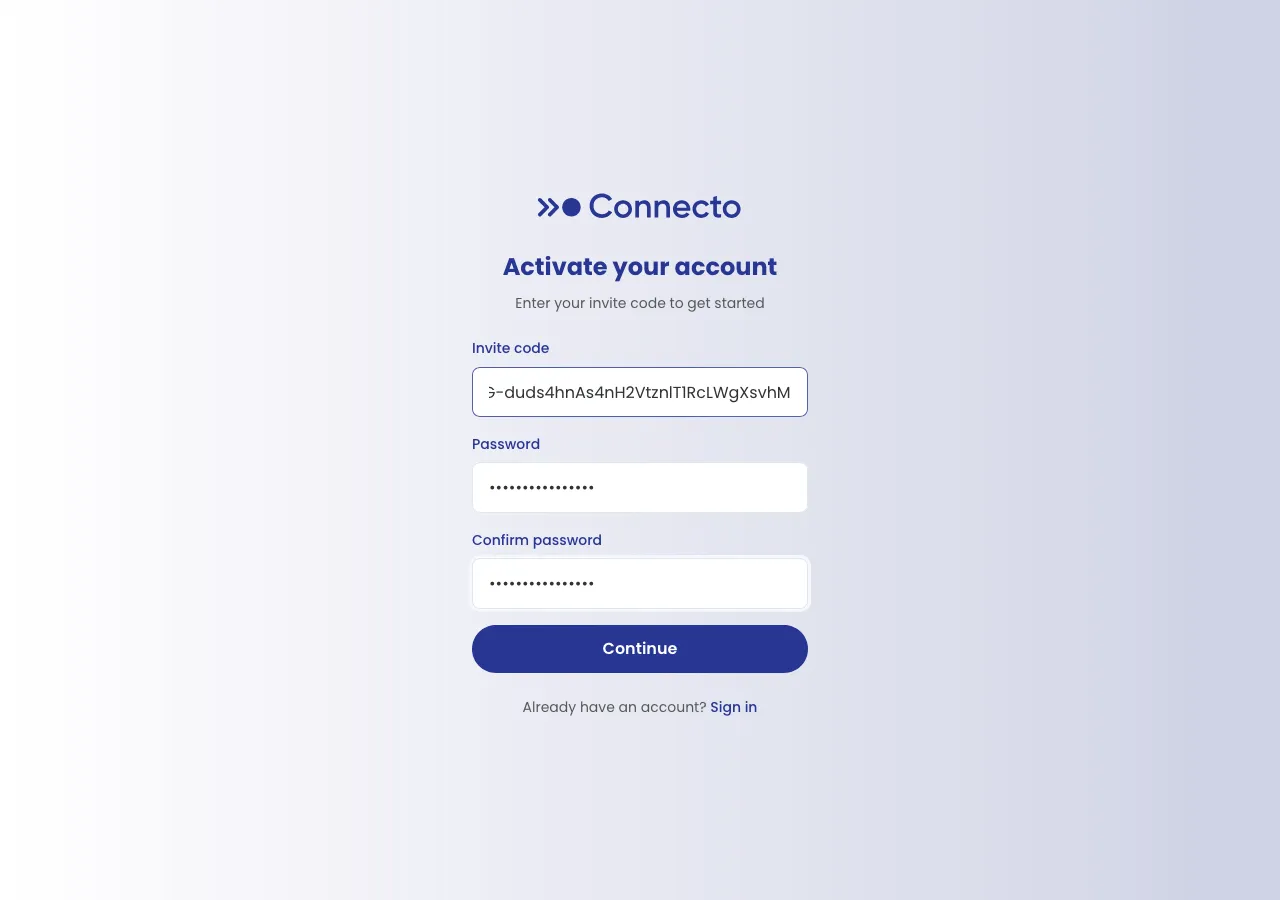
You’ll then be taken straight to two-factor setup.
Set up two-factor authentication
Section titled “Set up two-factor authentication”Two-factor authentication (2FA) is required for every Connecto account — you set it up as the last step of activation and can’t skip it.
- On the Set up two-factor authentication screen, open an authenticator app on your phone (for example Google Authenticator, Authy, or 1Password).
- Scan the QR code with the app. Can’t scan? Choose enter this key manually and type the secret key shown on screen instead.
- Your authenticator app now shows a 6-digit Verification code that changes every 30 seconds. Enter the current code.
- Select Verify code.
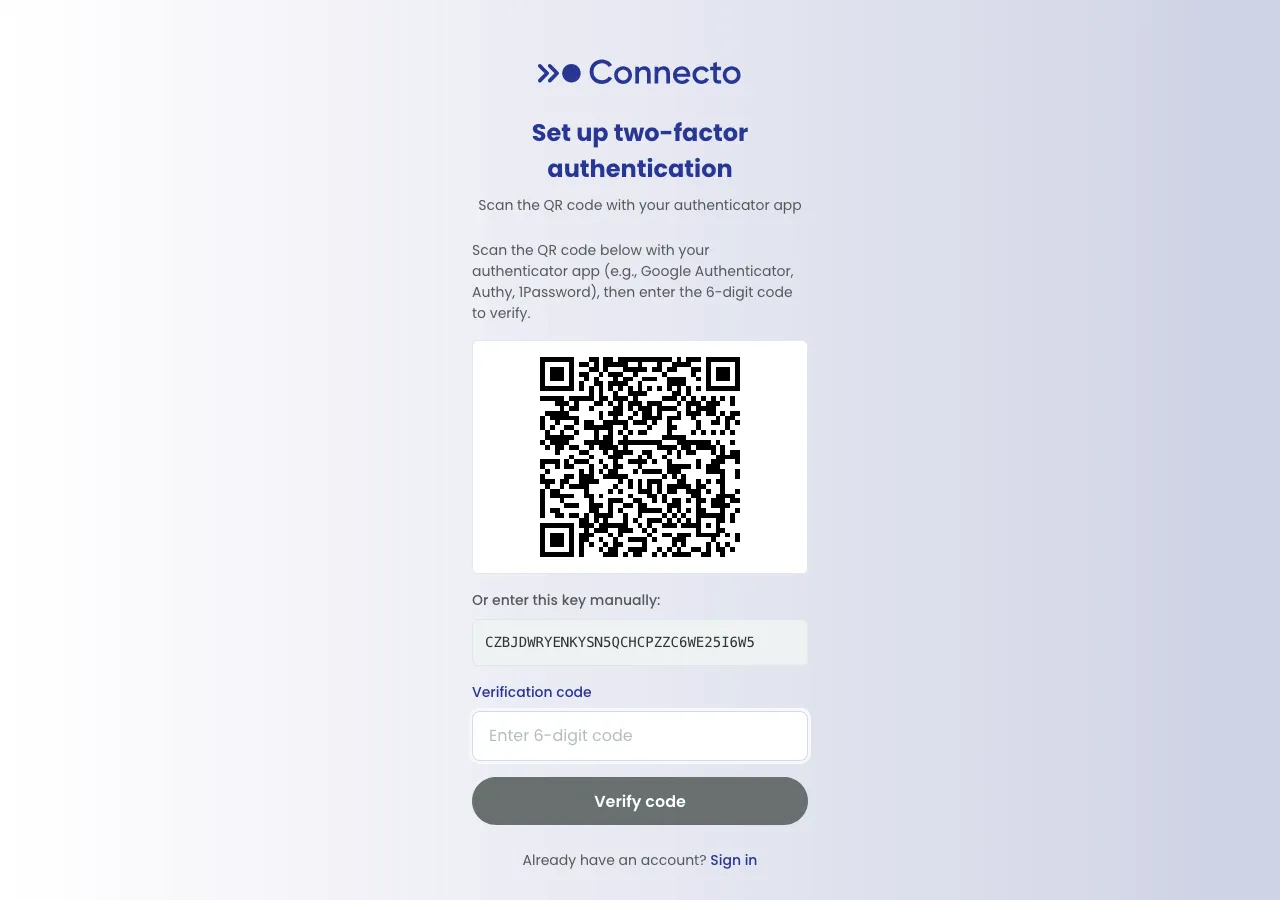
That’s it — you’re signed in and taken to your dashboard.
Next time you visit Connecto, use your email and password to sign in.