The pipeline editor
Who this is for:Organization admins
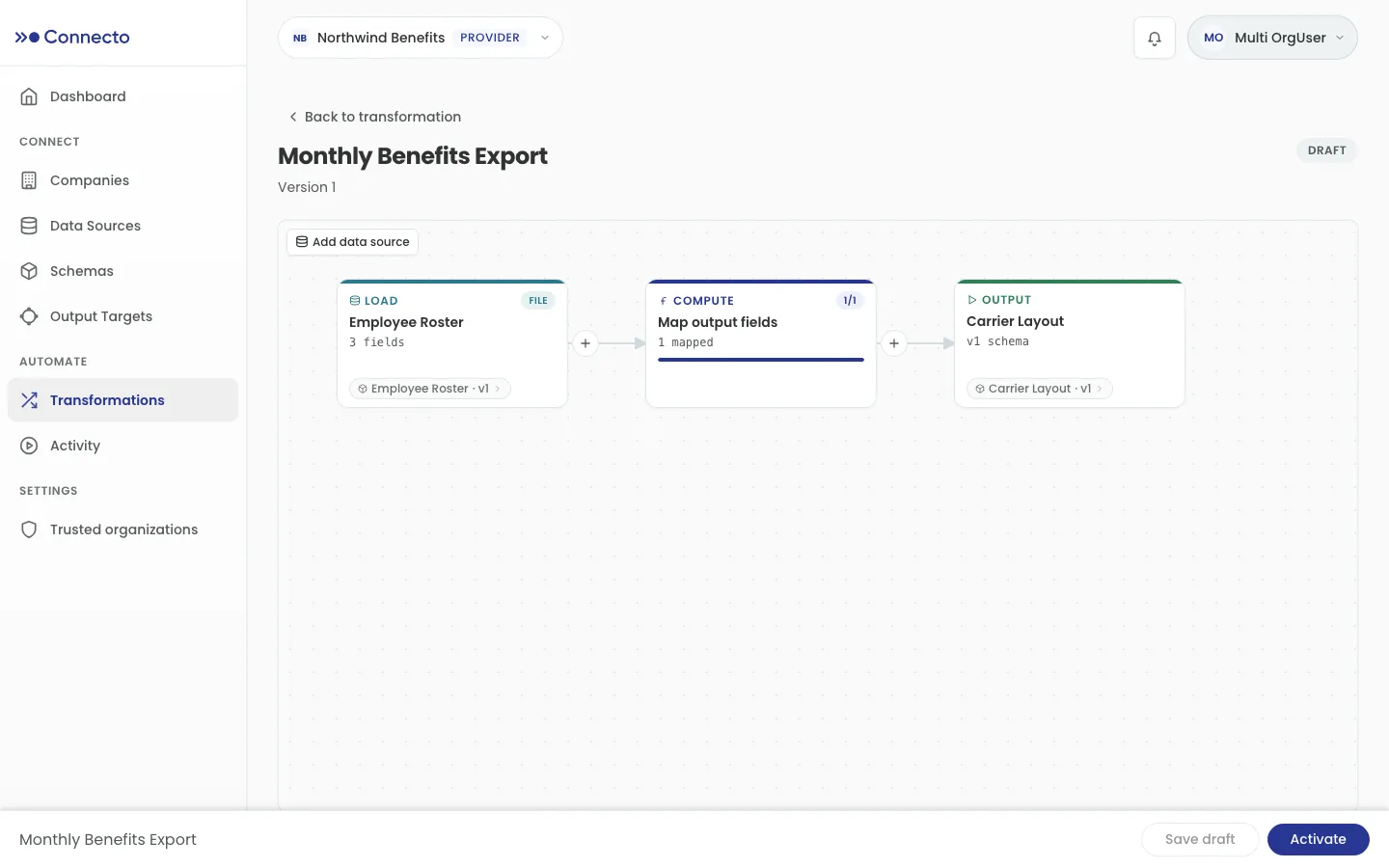
The pipeline editor shows a transformation version as a diagram: boxes (nodes) for each step, connected by lines that show how data flows. You reach it by opening a version — on a non-draft version, select View pipeline; changes always open in a new Draft (see Running and versions).
Use the pipeline editor when a transformation needs more than a single source and a field mapping — filtering rows, joining a second input, grouping and summarising, or reshaping wide data into rows.
The canvas
Section titled “The canvas”A new version starts empty, prompting you to Start your pipeline. Select Add data source to load your first input.
- Each node shows its type (Load, Filter, Join, Aggregate, Unpivot, Compute, Output) and a short summary.
- Single-click a node to select it. Double-click it (or press Enter) to open it for editing.
- To add a step after a node, use its + button (“Add downstream step”). A chooser lists what can come next.
- Nodes flag problems with a badge — validation errors must be fixed before you can activate the version; warnings are advisory.
Adding a step
Section titled “Adding a step”From a node’s +, the Add downstream chooser offers:
| Step | What it does |
|---|---|
| Compute | Map and derive new fields with expressions. |
| Filter | Keep only rows that match a condition. |
| Aggregate | Group rows and calculate values per group. |
| Unpivot | Turn repeated fields into output rows. |
| Join | Combine with another data source on matching fields. |
| Output | Send the result to an external destination. |
An Output node is the end of a branch and has no +. To bring in another input, use Add data source on the toolbar and connect it where you need it.
The steps
Section titled “The steps”A Load node reads a data source into the pipeline. Pick the Data source (use Change to swap it), and Connecto shows its Schema — the fields it brings in.
Filter
Section titled “Filter”A Filter keeps only the rows that match a condition — Keep rows where …. Choose a field, an operator, and a value. The Filter step supports is equal to and is not equal to. (Richer comparisons are available inside conditional expressions — see Building field expressions.)
A Join combines two inputs on matching columns.
- Choose the Join type — Left, Inner, Right, or Full.
- Confirm the Left input (the primary input) and select the Right input (a second upstream step).
- Under Match conditions, pair a Left column with a Right column (
=). Add more conditions as needed. - If both sides carry a column with the same name, Connecto warns of duplicate output fields — add a Left prefix and/or Right prefix so the joined columns stay distinct and selectable downstream.
Aggregate
Section titled “Aggregate”An Aggregate groups rows and calculates values per group.
- Choose the Output shape: Summarize (one row per group — group keys plus your calculated columns) or Annotate (keeps every row and adds the calculated columns).
- Under Group rows by, add the columns that define a group.
- Under Calculations, add one or more:
- Name the calculation (for example total_revenue).
- Choose a Type: Group value (a Function — Max, Min, Sum, or Count — over a Source column) or Sequence (a running number, ordered by one or more Sort order fields, Ascending or Descending).
The preview shows whether the step produces fewer rows (Summarize) or the same rows (Annotate).
Unpivot
Section titled “Unpivot”An Unpivot turns repeated fields into rows — reshaping wide data (many columns) into long data (many rows).
- In Inputs, select the fields to preserve on every generated row.
- In Output Design, Add Record for each repeated output row you want, and Add Custom Field for the columns those records produce.
- In the matrix, map each custom field for each record to an upstream field (or Blank).
The Issues rail lists anything still unmapped. The preview shows how many records each input row produces.
Compute
Section titled “Compute”A Compute node maps and derives your output fields. Connect it to an Output node so it knows the target schema, then map each field.
- The Outputs column lists target fields under All, Unmapped, Suggested, and Mapped tabs, with required fields marked. Accept a suggested mapping, or Accept all.
- Select Map field to build a field’s value in the inspector (see below).
- The preview footer shows sample Input and Output rows, and surfaces schema mismatches, compilation errors, and row errors so you can fix them as you go.
Output
Section titled “Output”An Output node sends the result to a destination.
- Confirm the Input connected to it.
- Choose the Destination (an output target — file storage or SFTP; use Change to swap it).
- Choose the Schema version the output must conform to.
Building field expressions
Section titled “Building field expressions”When you map an output field (in Compute, or in the wizard’s Mapping step), you build its value. There are four kinds:
- Field — map straight from an input field.
- Value — a fixed constant (Text, Number, or Yes/No).
- Operation — apply a function (below).
- IF — a conditional that returns different values depending on the data.
A live preview describes the expression in plain language as you build it.
Functions
Section titled “Functions”The Operation builder offers these functions:
| Function | What it does |
|---|---|
| Combine | Combine text together (join several values into one). |
| Trim | Remove surrounding whitespace. |
| Slice | Extract part of text from a starting position for a number of characters. |
| Left | The first N characters. |
| Right | The last N characters. |
| Text to Date | Parse text into a date (choose the input format). |
| Text to Date & Time | Parse text into a date with a time. |
| Date to Text | Format a date as text (defaults to ISO yyyy-MM-dd). |
| Add Days | Add days to a date (use a negative number to subtract). |
| Date Difference | The difference between two dates, in Days, Hours, or Minutes. |
Conditionals (IF)
Section titled “Conditionals (IF)”An IF expression returns different values depending on the data:
- IF a condition holds, THEN produce this value.
- Add OTHERWISE IF branches for more cases.
- Add an OTHERWISE fallback for everything else (required for non-nullable fields).
A condition compares a field against a value with operators including is equal to, is not equal to, is greater than, is less than, is at least, is at most, contains, starts with, and ends with. Combine several conditions in a branch with AND / OR.
Previewing and resolving issues
Section titled “Previewing and resolving issues”Most steps offer Preview data to see sample rows through that point in the pipeline, and the editor continuously validates the graph. A version can only be activated once its blocking issues to resolve before activating reach zero — an incomplete join, an unconnected output, an unmapped required field, or a schema mismatch will each hold activation until you fix it.
When your version runs clean, move on to Running and versions.