Running and versions
Who this is for:Organization admins
Once a transformation is built and its output fields are mapped, you activate the version you want live and run it. This page covers managing versions, starting a run, and reading the result.
Managing versions
Section titled “Managing versions”Open a transformation to see its Versions list. Each version has a status — Draft, Active, Deprecated, or Invalid (see the overview for what each means).
- New version — start a fresh draft. If a draft already exists, the button reads Edit Draft (vN) instead, since a transformation has at most one draft at a time.
- View pipeline — open a version in the pipeline editor. Editing an active or otherwise locked version opens your changes in a new Draft — the live version keeps running untouched.
You can also edit the transformation’s Name and Description from the name card at the top.
Activating a version
Section titled “Activating a version”A Draft must be activated before it can run.
- Open the draft version.
- Resolve any issues to resolve before activating — the editor won’t let you activate a version with blocking problems.
- Select Activate.
Activation is immediate and shows Version activated. The newly active version becomes the one that runs; the previously active version becomes Deprecated. Only one version is ever active.
Deactivating a version
Section titled “Deactivating a version”To take a version out of service, open it and select Deactivate. Connecto asks for an optional reason and confirms with Version deactivated. A deactivated version is marked Invalid and no longer runs.
Running a transformation
Section titled “Running a transformation”Select Run Transformation — from the Transformations page, an individual transformation, or the Activity page.
- In the Run Transformation dialog, choose the Transformation. Only transformations with an active version appear — the run always uses that active version, so there’s no version to pick.
- A summary shows the version’s Inputs and Outputs so you can confirm you’ve got the right one.
- Select Run Transformation. Connecto starts the run and shows Transformation started successfully.
The status banner
Section titled “The status banner”While a run is in flight, a banner keeps you posted — Transformation queued…, then Transformation running…, and finally one of Transformation completed successfully, Transformation completed with row errors, Transformation failed, or Transformation cancelled. Select View results / View details on the banner to jump to the run.
Watching a run
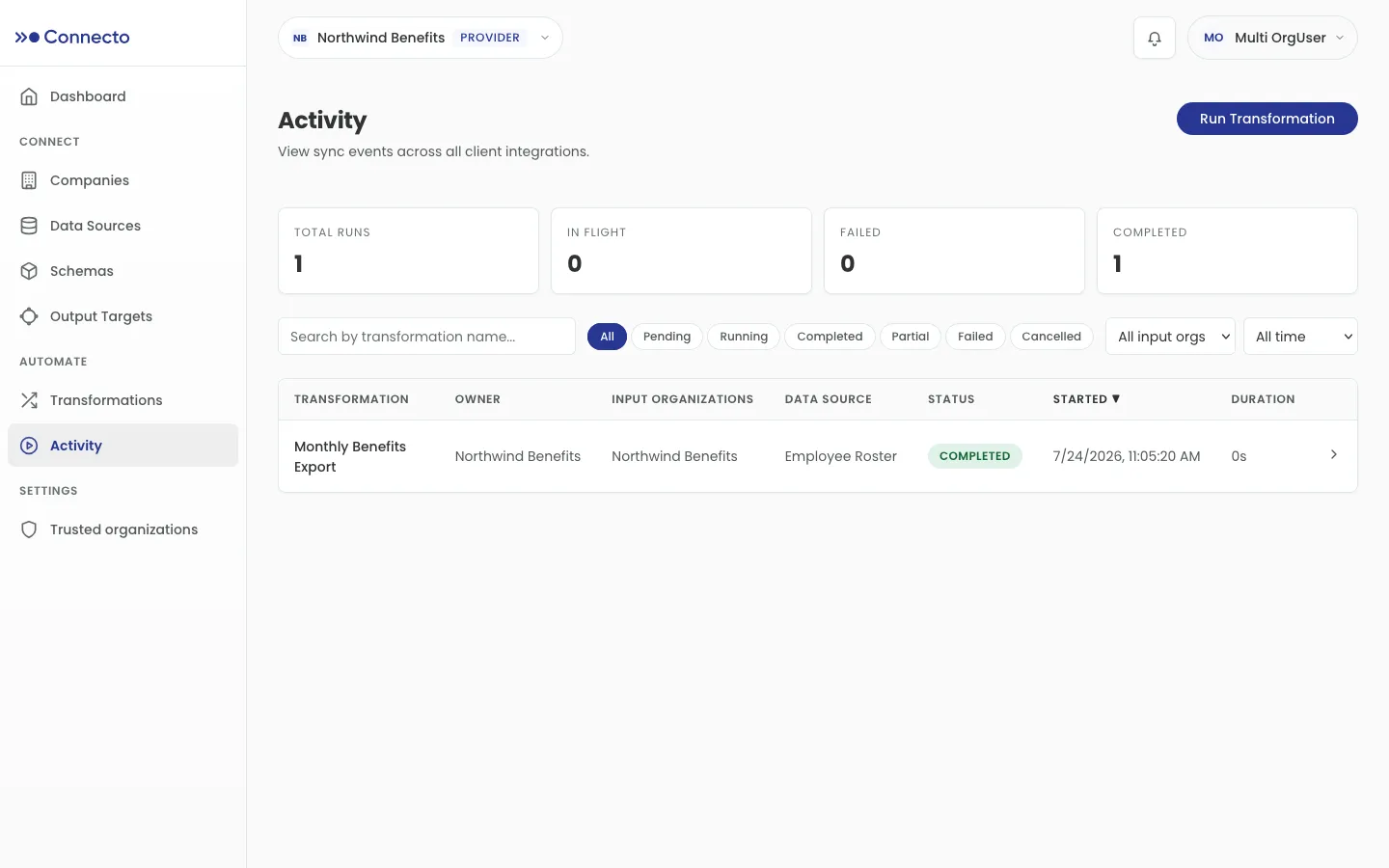
Section titled “Watching a run”The Activity page lists every run. Filter by status with the tabs — All, Pending, Running, Completed, Partial, Failed, Cancelled — or search by transformation name. The list refreshes on its own while runs are active.
An execution moves through these statuses:
| Status | Meaning |
|---|---|
| Pending | Queued, not yet started. |
| Running | In progress. |
| Completed | Finished successfully. |
| Partial | Finished, but some rows had errors (only possible when Allow partial failures is on). |
| Failed | Stopped on an error. |
| Cancelled | Stopped by a user. |
Reading a run
Section titled “Reading a run”Open a run to see its detail. While it’s still going, the page shows Transformation Queued or Transformation Running with an elapsed timer and updates itself; you can Cancel or Mark Failed a run that’s in flight.
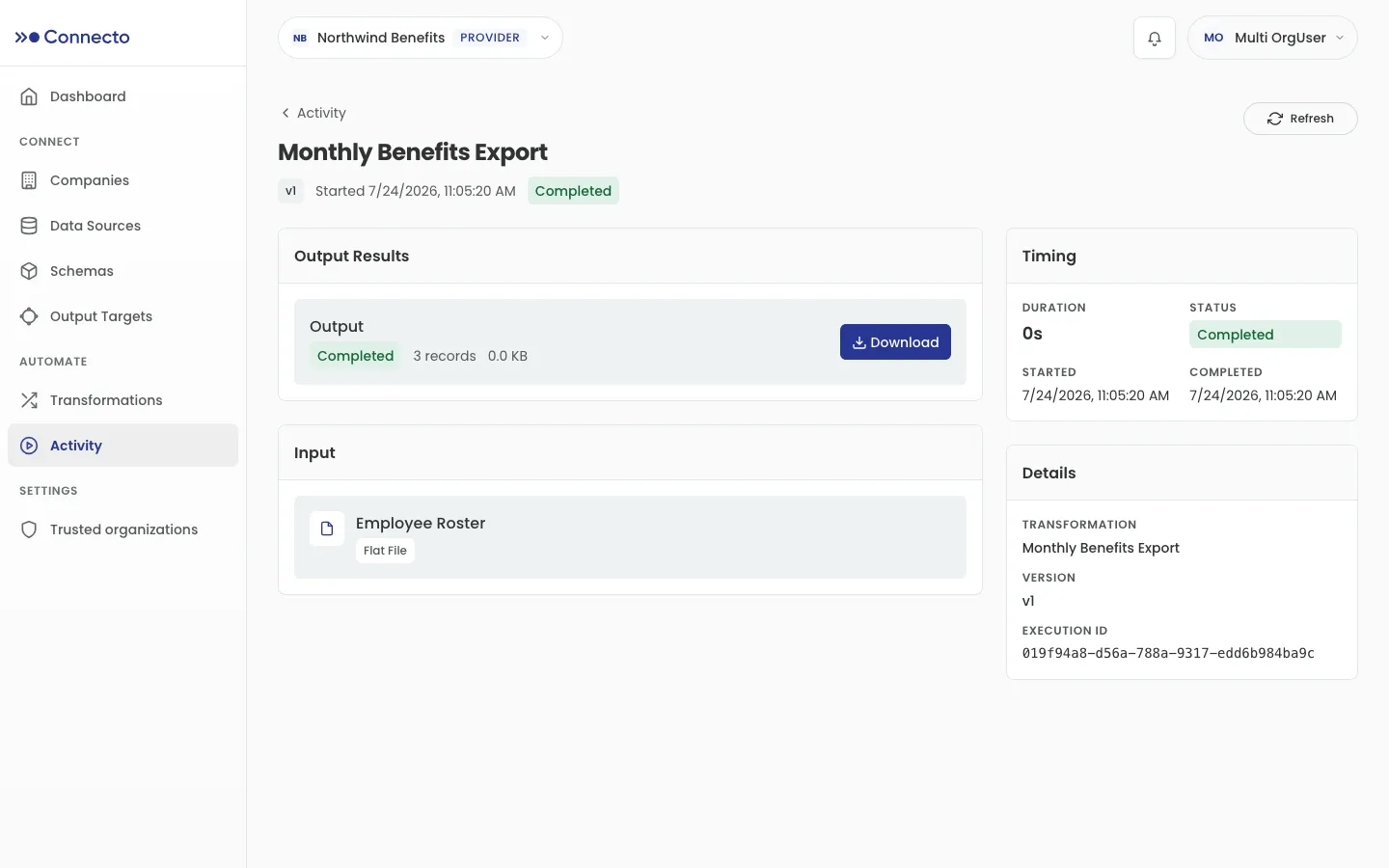
Once it finishes:
- Output Results lists each output with its record count and file size. Select Download to save the produced file.
- Row Errors appears when a run is partial or hit row-level problems, listing the Row, Step, Field, and Error for each.
- Error Details shows the message for a failed run.
- The sidebar records Timing (duration, started, completed) and Details (transformation, version, execution ID).
What Connecto doesn’t do
Section titled “What Connecto doesn’t do”Runs are started by hand (or by an upstream pull) — Connecto has no built-in scheduler, so there’s no recurring “run every night” setting to configure. Start a run when you need one from any of the Run Transformation buttons above.